
Sheaf
The PDF toolset for your Mac.
For Mac with Apple silicon, macOS 26 or later. 14-day free trial. No account.
By buying you accept the terms of sale.
Question before you buy? Ask here. Already using Sheaf? Get support.
Merge, split, compress, redact, fill and sign. Your originals are never changed.
Everything you do to a PDF, in one calm app.
Sheaf is a native Mac app for the jobs people usually send to a website: joining files, pulling pages out, making a file small enough to email, blacking out private details, and filling in and signing a form. It does them on your Mac, to a copy, and tells you plainly what it did.
Your documents stay on your Mac
Sheaf works on your files where they are. It does not upload them, and it needs no account. It can only reach the files and folders you choose.
Your original is never changed
Every result is saved as a new file in your output folder, such as Report-compressed.pdf. If the name is taken, Sheaf adds a number. It never replaces a file.
Pay once
One price and no subscription. There is no account to create and nothing to renew.
Everything it does, done properly.
Each tool shows you the result before anything is saved.
The tools
Merge, split, pages, compress, redact, fill and sign, batch.
Merge
Drop in several PDFs, drag them into the order you want, and join them into one file containing every page. If one is password protected, Sheaf asks you to unlock it first.
Split and extract
Pull out the pages you list, such as 1-3, 5, 8-, in the order you write them. Or cut a long document into several files of the same number of pages.
Rearrange pages
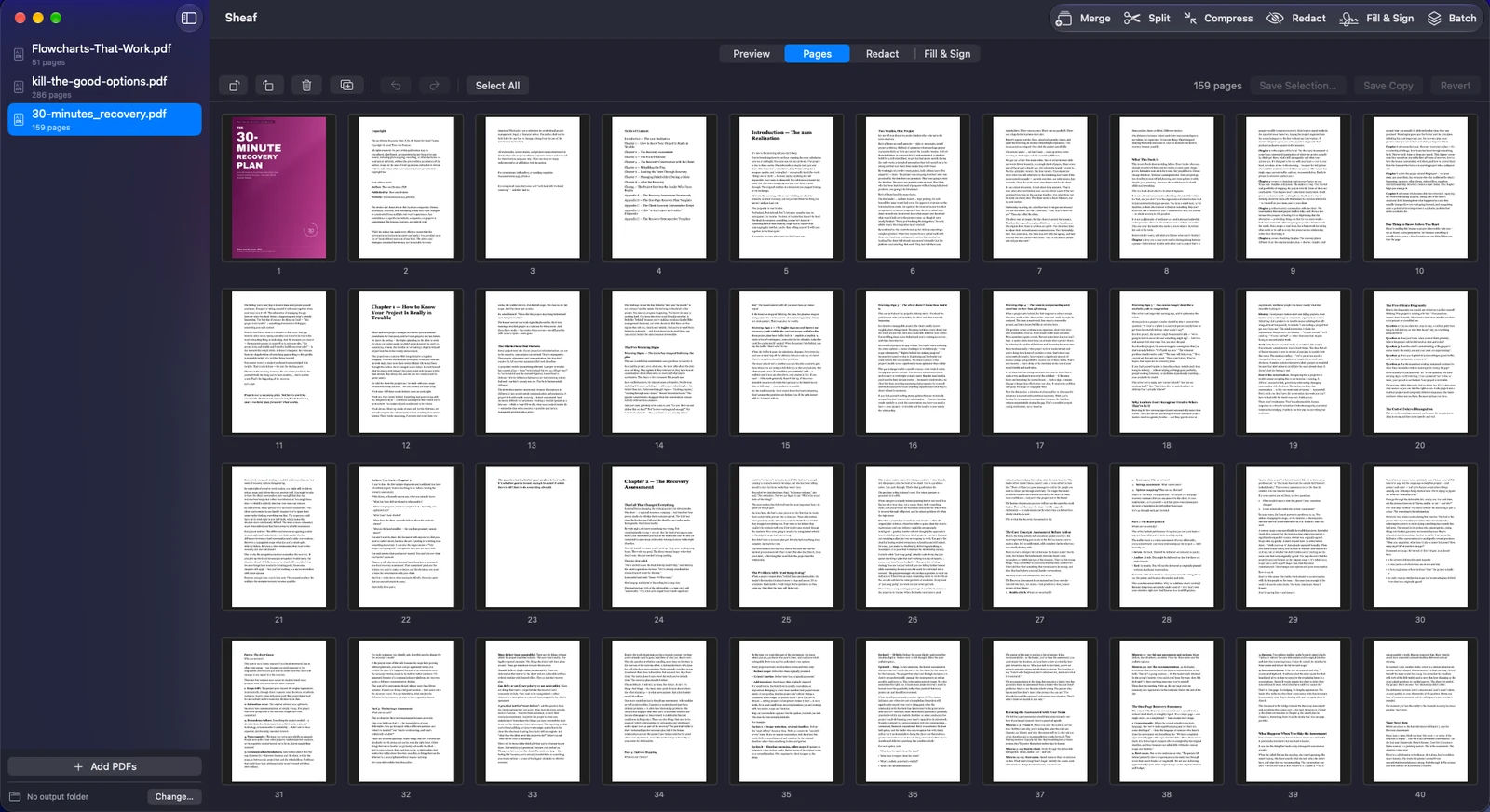
See every page as a thumbnail. Drag pages into a new order, rotate them, insert a blank page or delete pages, with undo and redo all the way back. Save the whole document as a copy, or only the pages you selected.
Compress
Choose High quality (images at 200 ppi, best for print), Balanced (144 ppi, for screen and email) or Smallest (96 ppi). Text and drawings stay sharp; only the pictures are reduced. Sheaf shows the old size, the new size and the saving before you keep the file, and saves nothing if it cannot make the file smaller.
Redact
Search for words, or drag boxes over anything you want gone. Sheaf removes what is under the boxes for good, then reads the finished file back to check. See the next section for exactly how.
Fill and sign
Fill in form fields, or write directly on any page: text, today's date, ticks and crosses. Add your signature by drawing it on the trackpad, or by importing a photo or scan of it. Your signatures are stored encrypted on your Mac.
Batch
Compress, rotate or redact a whole folder of PDFs in one go. Each file gets its own result and its own status, and if one fails the others carry on.
Password-protected files
Enter the password to open a locked file and work on it. Sheaf uses the password only while the app is open and does not store it.
Black boxes that really remove the text.
A black rectangle drawn over text in a PDF often hides nothing: the words are still there to be selected, copied and searched. Sheaf does not draw over text. It removes it.
How Sheaf redacts
Removed, then checked.
Burned in, not covered up
Each page with a mark on it is turned into a picture with the black boxes burned in, so the text underneath is gone from the file. Pages you did not mark are copied across untouched.
Finds words in pictures too
Searching reads the text on every page, including words inside scans and pictures, so a name that appears in a scanned letter is found as well as one typed in the body.
Checked before it is saved
Sheaf reads the finished file back: its text, annotations, document properties and raw file data, plus a text-recognition pass over every page. If any word you searched for is still there, nothing is saved and the file is deleted.
Plain about the limits
Redacted pages become pictures, so their text can no longer be selected. Bookmarks are left out of redacted files, because their titles could contain the words you removed. The check is assisted by text recognition; the guarantee comes from the burn-in. Boxes you draw on a scanned page cannot be checked by reading text, so look at the result.
Sign a form without printing it.
How filling and signing works
Fill, place, sign, save.
Fill real form fields
Click a field and type, tick it, or choose from its list. A panel shows how many fields there are and jumps you to each one. If the PDF has no fields, write on the page instead.
Your signature, kept private
Signatures are stored on your Mac, each in its own encrypted file, with the key held in your keychain. An imported photo of your signature has the paper removed and the ink kept, so it sits cleanly on the page.
Flatten when you send
Choose to flatten and the fields and your signature become part of the page, so the recipient cannot edit or move them. Leave it off if the other person still has to complete the form.
Checked after saving
Sheaf reads the saved file back to make sure what you placed is in it. If it is not, the file is removed rather than handed to you.
An image of your signature, not a certificate
A signature in Sheaf is a picture of your handwriting. It is not a digital certificate and does not prove who placed it. For most forms that is what is asked for; check with the person you are sending it to if you are unsure.
Add, choose, save a copy.
Three steps, and your original is never touched.
- 1. AddDrop PDFs onto the window or choose Add PDFs. Each one appears in a list, and you can drag them into order.
- 2. ChoosePick a tool from the toolbar. See the result, and change the setting if you want to compare.
- 3. Save a copyThe result goes to your output folder as a new file named after the original.
$19.99. Pay once. Yours to keep.
Try Sheaf free for 14 days with every feature on. If it earns a place in your work, one payment unlocks it for good.
- 1. TryDownload Sheaf and use it for 14 days. No card, no account.
- 2. UnlockPay once and open the licence file we email you.
- 3. KeepNo renewals. Your documents stay yours either way.
The price is shown at checkout.
Good to know.
Does Sheaf upload my documents?
No. Sheaf works on your files on your Mac and does not upload them. It has no accounts. In the version from this website, Sheaf fetches a small public list of withdrawn licences about once a week; nothing about you or your files is sent.
Will it change or overwrite my original file?
No. Every operation works on a copy and saves a new file. If a file name is already taken, Sheaf adds -2, -3 and so on.
Is the redaction really permanent?
Yes, for the pages you mark. They are turned into pictures with the boxes burned in, so the text underneath is no longer in the file, and Sheaf then checks the result. The trade-off is that redacted pages can no longer have their text selected.
Is a signature made in Sheaf legally binding?
Sheaf places a picture of your handwritten signature. It is not a digital certificate. Whether a picture of a signature is accepted depends on the document and the person receiving it, and Sheaf cannot advise on that.
Can it edit the existing text in a PDF?
No. Sheaf does not edit existing body text, create PDFs from scratch or convert to and from Word. It is for the jobs listed above.
Why would a file not get smaller?
Small PDFs that are mostly text are already compact, so there is little to save. When Sheaf cannot make a file smaller it tells you and saves nothing.
Can I compress a PDF that has form fields?
Not directly, because compressing removes the fillable fields. Fill the form in Fill and Sign, save it flattened, then compress the result.
Which Macs does it run on?
Macs with Apple silicon, running macOS 26 Tahoe or later. There is no Intel version.
Can I try it first?
Yes. The version from this website has a 14-day free trial with every tool. When it ends you can still add and read your PDFs; merging, splitting, compressing, redacting, filling and signing, and saving page changes need a licence. Your files are never changed.
Where can I get it?
Sheaf is available now. Use the buttons at the top of this page.